How to put multiple pages on one sheet in a PDF file
Complete guide to printing 2, 4 or more slides per page and saving up to 75% on printing costs
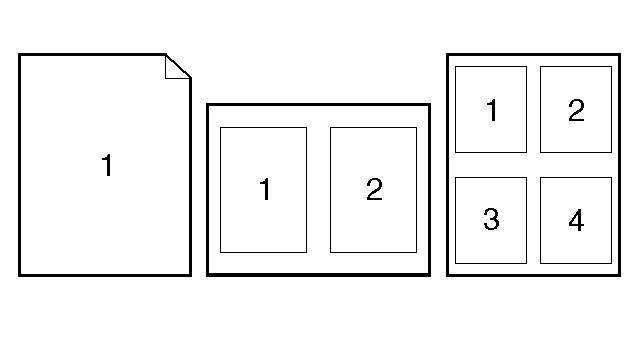
Have a PDF document with many pages and want to reduce your online printing costs? The solution is simple: put multiple pages on one sheet. In this guide we explain how to put two slides on one PDF page, or 4 pages per sheet, using a free online service. We also show you how to do it directly with our new service fastprint24.com, without having to prepare anything.
Why print multiple pages per sheet? Real savings
Printing more pages on one sheet is the most effective way to save on online printing. The calculation is straightforward:
- 2 pages per sheet - halve the sheets, save 50%
- 4 pages per sheet - a quarter of the sheets, save 75%
Practical example: a 200-page document in black and white on TuaStampa.it (€0.03/page):
- Normal printing (1 page per sheet): 200 sheets = €6.00
- 2 pages per sheet: 100 sheets = €3.00 - you save €3.00
- 4 pages per sheet: 50 sheets = €1.50 - you save €4.50
This is particularly useful for university students who need to print notes, transcripts, course materials or study documents. With our online print shop, shipping is free for orders over €49 - combining multi-page printing with free shipping makes the savings truly significant.
Pros and cons of multi-page printing
Advantages
- Immediate cost savings - 50% to 75% fewer sheets
- Less weight and bulk - ideal for carrying notes to class or the office
- More eco-friendly - less paper used, less environmental impact
- Perfect for quick reference material - notes, summaries, outlines
Disadvantages - pay attention
- Text becomes smaller - with 2 pages per sheet, text shrinks by about 30%. With 4 pages the reduction is substantial. Make sure it is still readable
- Images shrink too - charts, diagrams and photographs may lose detail. Check that images are still clear at the reduced size
- Not ideal for presentations - slides with little text and large images lose too much readability in this format
Practical tip: documents with mostly text (notes, transcripts, articles, course materials) are best suited for multi-page printing. Documents with many detailed images or complex charts are better printed one page per sheet to maintain visual quality.
Method 1: use online2pdf.com (free service)
online2pdf.com is a free online service that allows you to set multiple pages on one sheet in your PDF file. Here is how to do it step by step:
How to put 2 slides on one PDF page with online2pdf.com
- Go to online2pdf.com/en
- Upload your PDF file - click "Select files" or drag and drop the file
- Click the "Layout" tab - found in the menu below the upload area
- Select how many pages per sheet - you can choose from:
- 2 pages per sheet ("2 in 1" format)
- 4 pages per sheet ("4 in 1" format)
- Other combinations available
- Choose orientation - portrait or landscape, based on your document
- Click "Convert" - the service generates the new PDF with your chosen layout
- Download the file and upload it to TuaStampa.it for printing
The service is free, requires no registration and works directly from the browser. It supports PDF files up to 100 MB.
How to put 4 slides on one PDF page
The procedure is identical. At step 4, instead of selecting "2 in 1", select "4 in 1". This option is perfect for printing presentation slides - each sheet will contain 4 slides. Remember that with 4 pages per sheet the text will be significantly smaller, so it works best with documents that have large text or slides with minimal content.
Method 2: print directly with FastPrint24.com - no conversion needed
Don't want to spend time converting the file? With our new website fastprint24.com, you no longer need to prepare the PDF before printing.
Simply upload the file directly to fastprint24.com, choose the "Pages per Sheet" option and select the layout you prefer:
- Normal - 1 page per sheet (standard)
- 2 pages per side - two pages on each side of the sheet
- 2 slides per side - two slides side by side on each side
- 4 pages per side - four pages on each side of the sheet
The system automatically prepares the layout and prints your document in the chosen format. No conversion, no software to install, no extra steps. Upload, choose, order - we take care of the rest. Try it now at fastprint24.com!
Which method should you choose?
| online2pdf.com | FastPrint24.com | |
|---|---|---|
| File preparation | Must convert first | None - upload and order |
| Layout control | Preview before printing | Automatic |
| Options | Many layout combinations | Normal, 2, 4 pages per side |
| Ideal for | Those who want full control over layout | Those who want speed and simplicity |
Both methods work well. If you want to verify exactly how the final result will look, use online2pdf.com to prepare the file and then upload it to TuaStampa.it. If you prefer speed and simplicity, upload directly to fastprint24.com and let us handle it.
Need other PDF operations? Check out our guides on how to merge multiple PDF files into one and how to compress a PDF file that is too large.
Share the article


Ordina anche dalla nostra App!